How to Add a Coworker to a Call Flow
How to Add a Person to a Call Flow
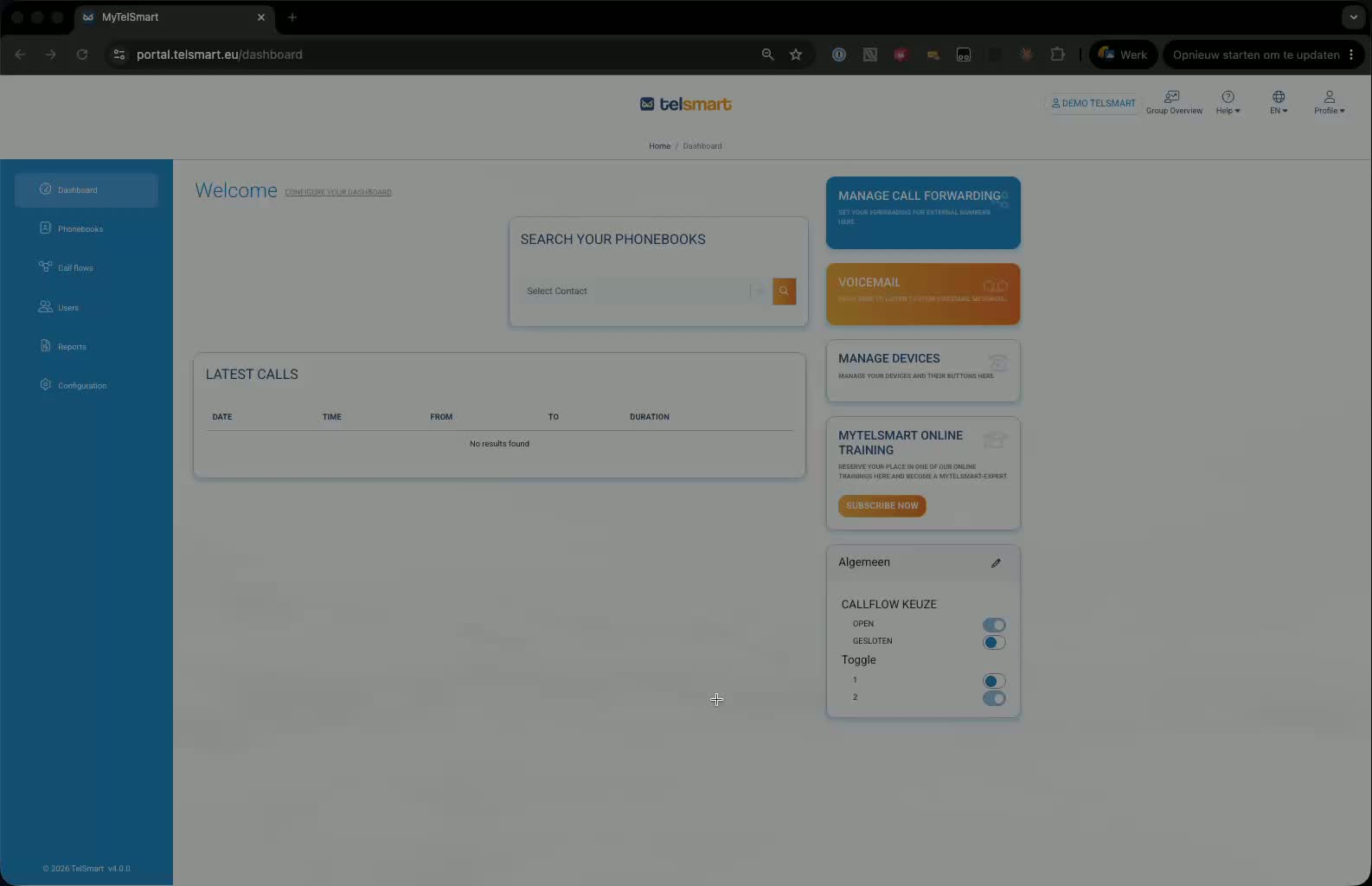
1. Open the Call Flows section from the dashboard 0:00
-
Start on the dashboard.
-
In the left-hand menu, click Call Flows.
-
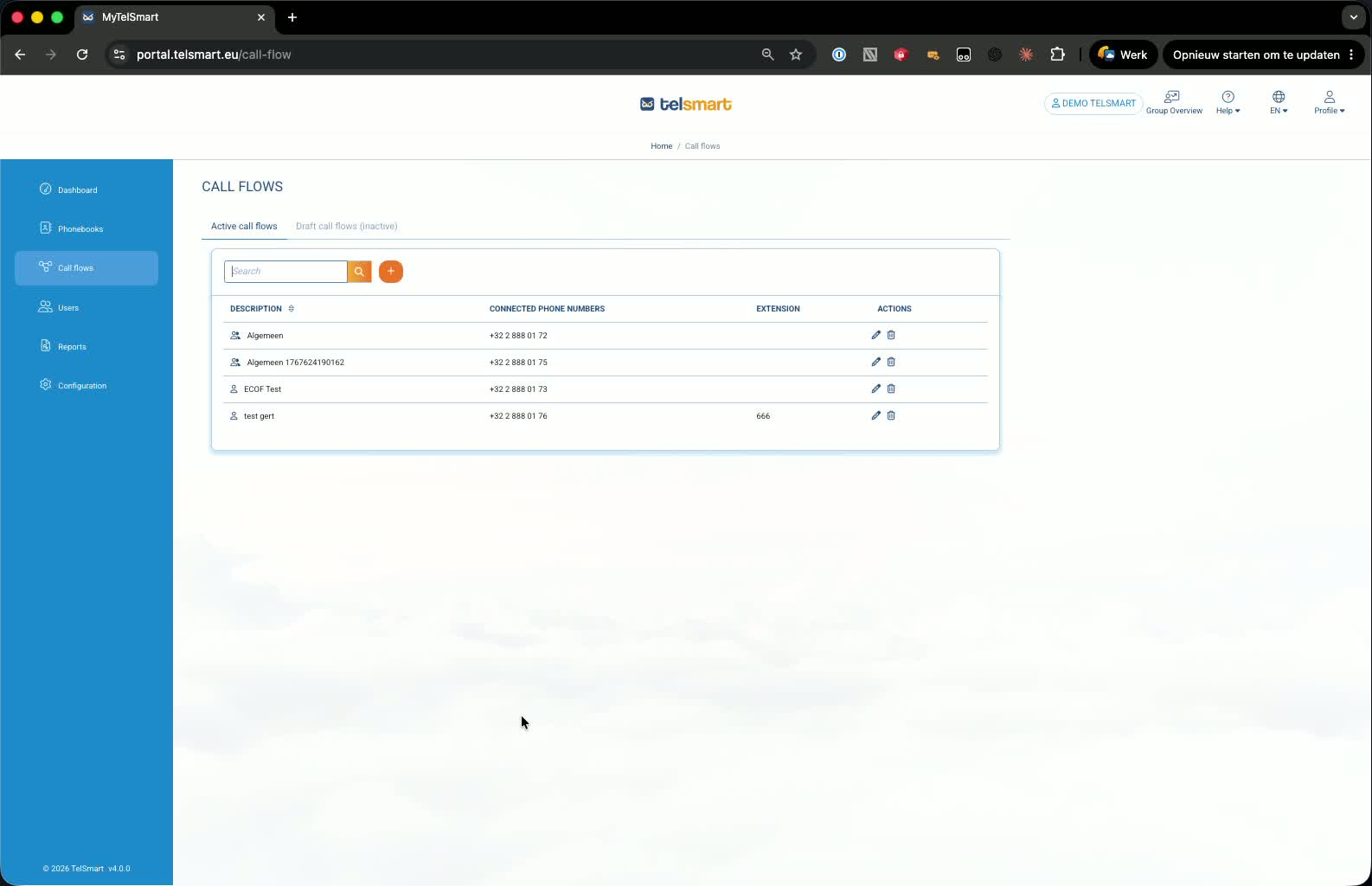
Search for the call flow you want to edit .
-
Confirm it is connected to the correct phone number before editing.
2. Edit the call flow 0:12
-
Click the pencil icon to open the call flow designer.
-
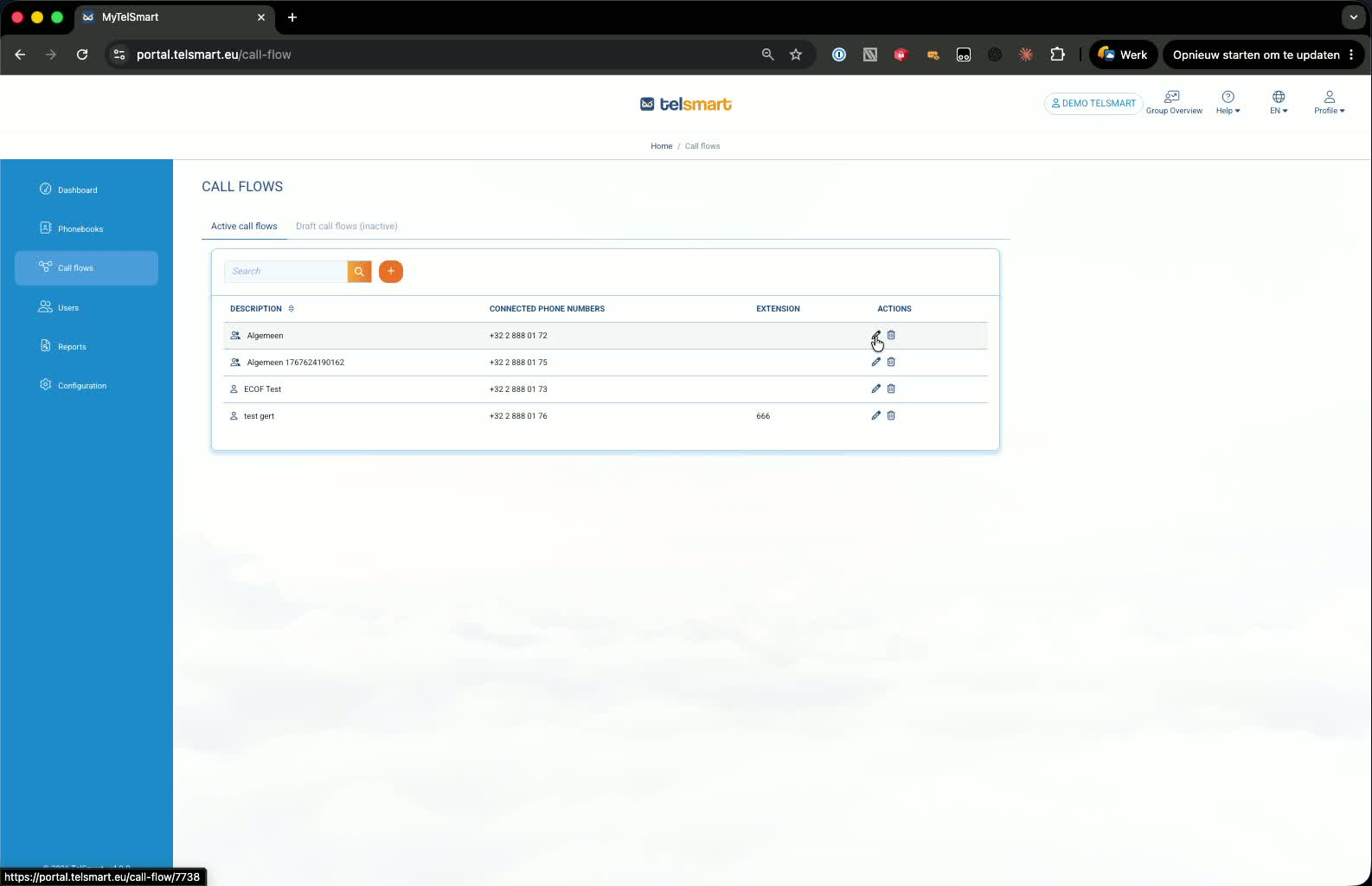
In the designer, you’ll see modules such as:
-
Opening hours
-
Dial block
-
Queue
-
-
These are the two main ways to make calls ring somewhere: via a dial block or a queue.
3. Add a person through the Dial block 0:24
-
In the Dial block, click the pencil icon to edit it.
-
Click the orange button to add a person to the call flow.
-
Select the person you want to add (for example, Philip).
-
Click OK.
-
Save the call flow, then save again to confirm.
-
The person is now added to the call flow.
4. Understand how the Queue option works 1:09
-
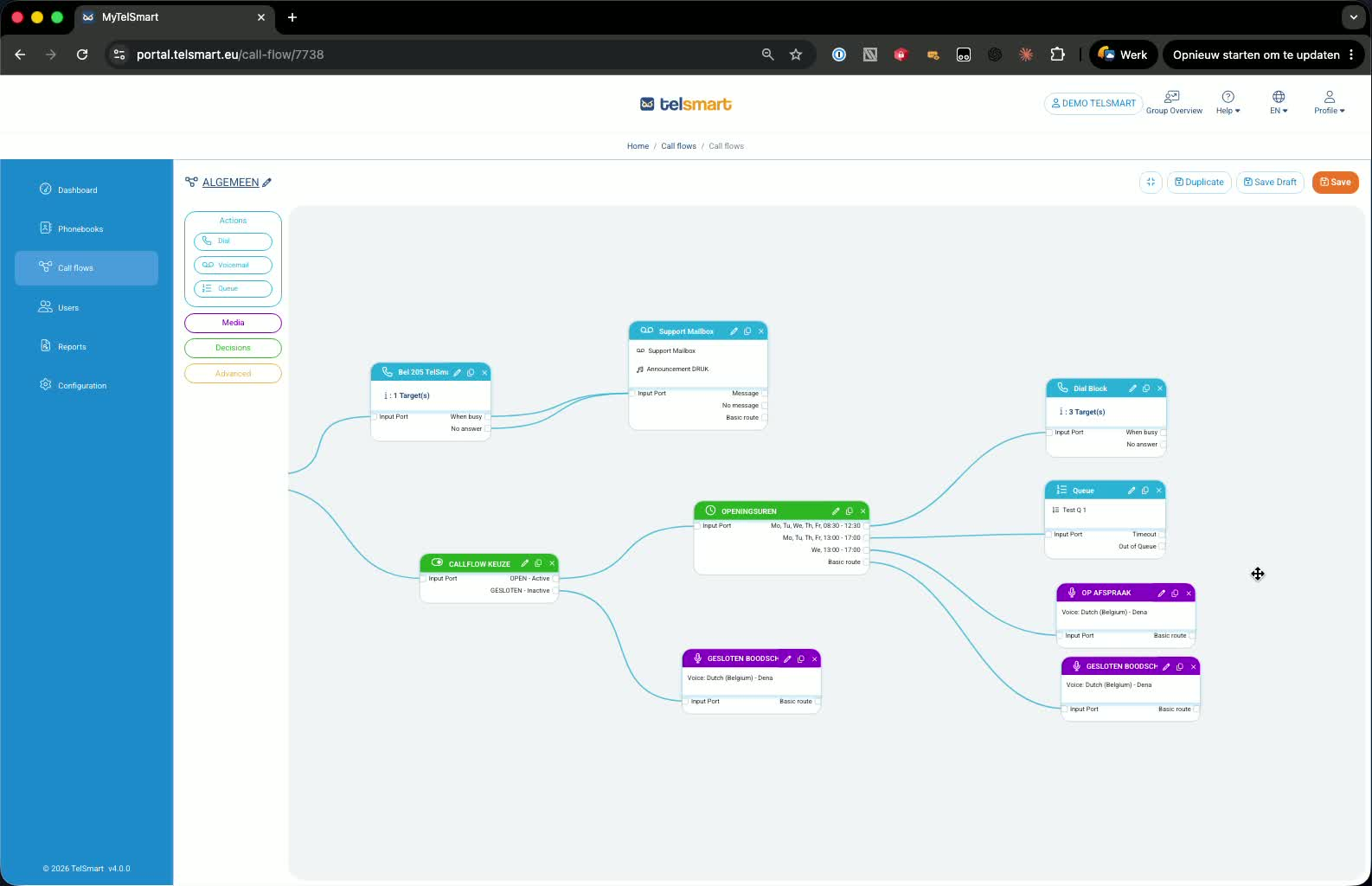
The Queue option also lets calls ring somewhere, with music playing while callers wait.
-
Unlike the Dial block, you do not add a person directly inside the call flow designer.
-
Instead, you define which queue the call flow should connect to.
5. Add a person to the Queue from Configurations 1:22
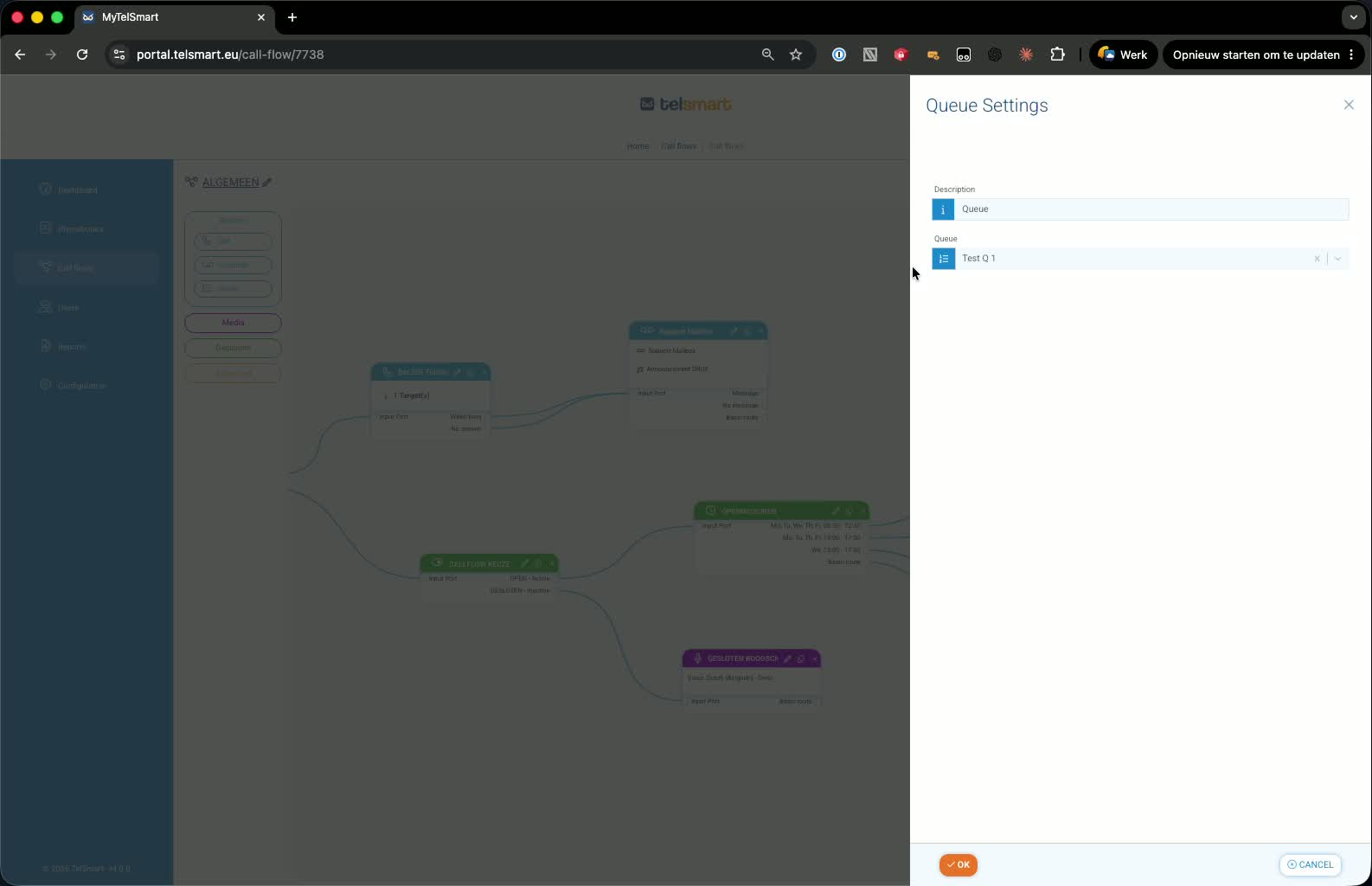
-
Go to Configurations.
-
Open the Queue section.
-
Find the queue you want to edit (for example, test Q number one).
-
Click the pencil icon to edit the queue.
-
In the queue settings, go to the relevant agent settings.
-
Click the orange button to add a person.
-
Select Philip and save.
-
The queue is now updated and connected to that person.