MyTelSmart - Voicemail
With the guide below, you can start configuring your own Voicemail.
Create a Voicemail box
Follow the steps below to first create your voicemail box. For this you need an email address.
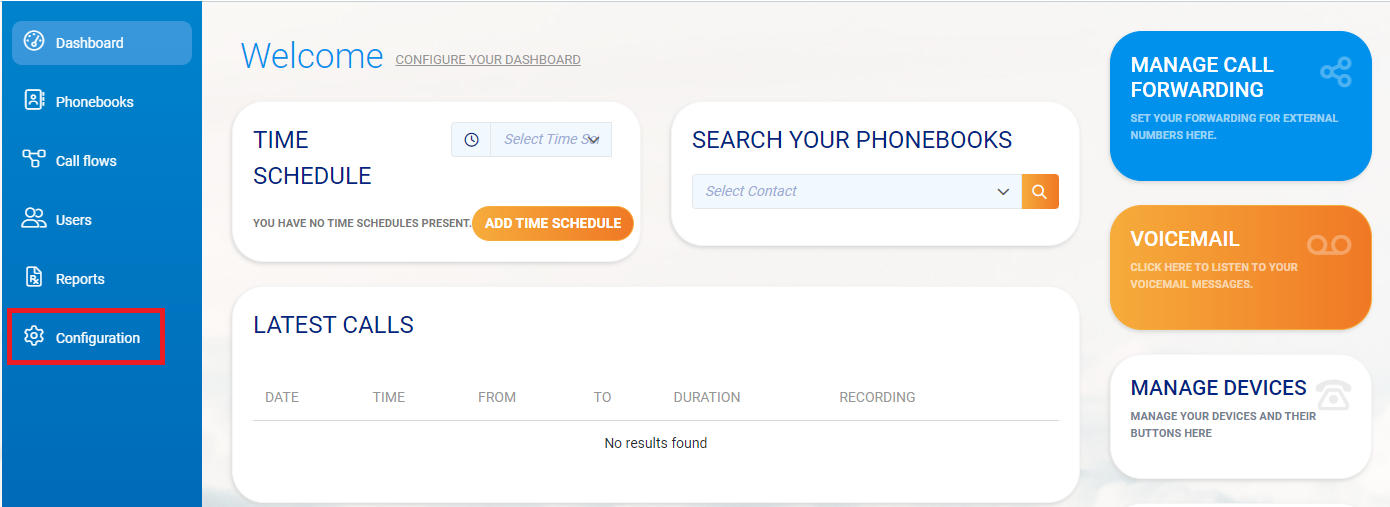
Step 1: Log in to the portal and choose Configuration/Configuration in the left menu.
Step 2: Now choose Voicemail.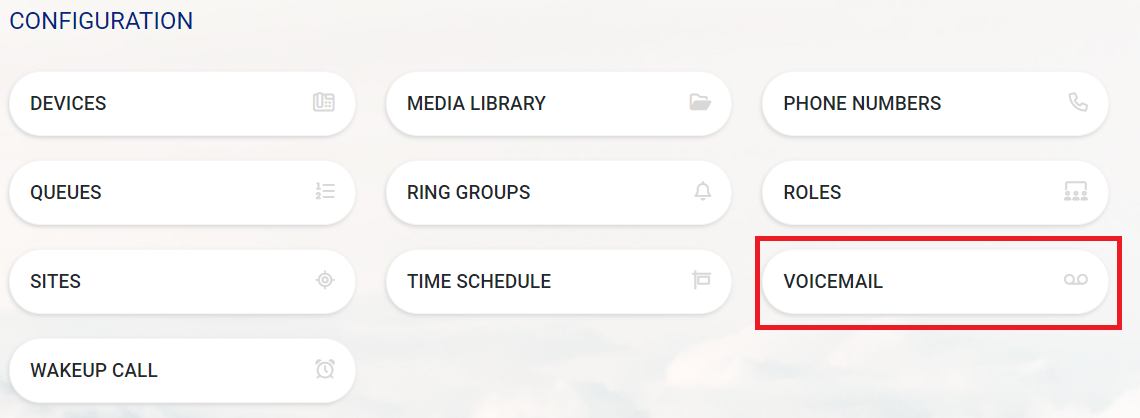
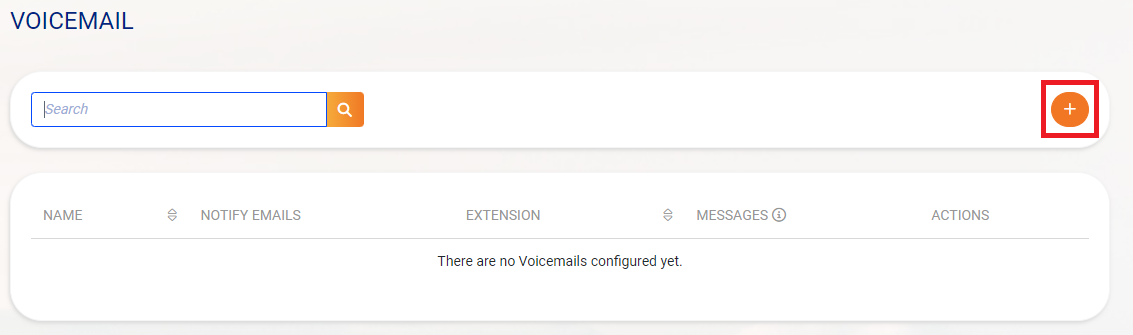
Step 3: Click on the + icon to start adding a Voicemail.
Step 4: Fill in the fields below. The description of the Voicemail, What email address may receive the notifications and Extension. Extension is a number you may freely choose in the (7xxx range).
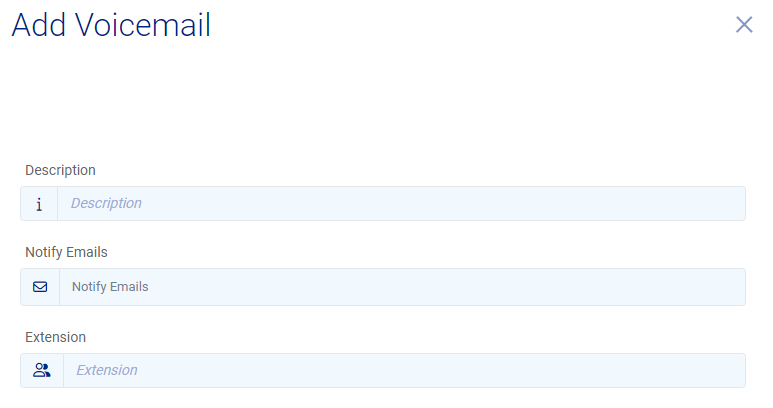
Step 5: Here is an example. This is a voicemail box for Support so the description is Support Mailbox, our support email address may receive the notifications of a new message. Extension here is nr 7777, if a call is made from any phone connected to your TelSmart configuration to this Extension nr you can start listening to the voicemail messages.
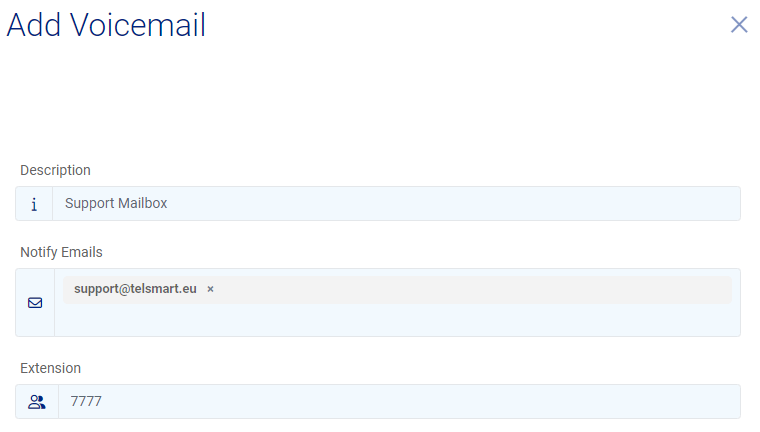
Save the settings.
Customize Voicemail
If you want to change the voicemail, you can take the following steps. First follow the steps mentioned above up to Step 3.
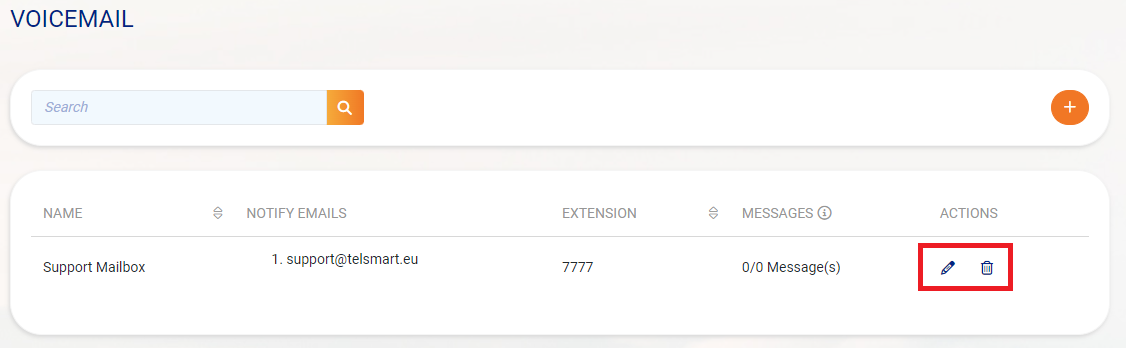
Step 1: Click on the pencil to edit the voicemail or click on the trash can to delete the voicemail.
Step 2: Adjust the information you wish to change and save your changes.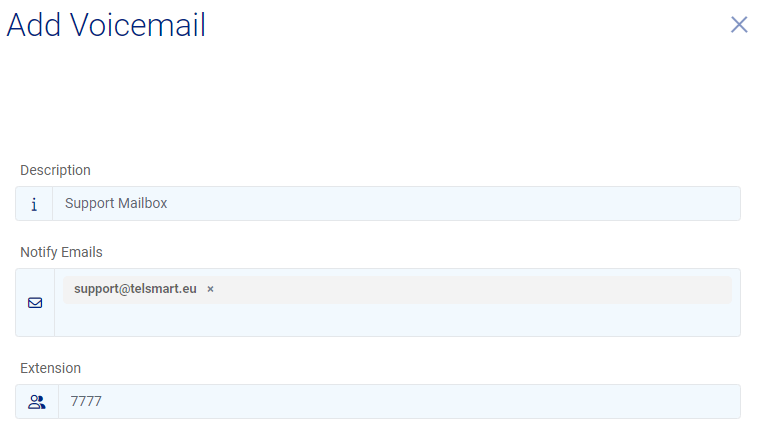
Add voicemail to Callflow
Follow the steps below to start adding Voicemail in the calling process.
Step 1: In the left side menu, navigate to Callflows.
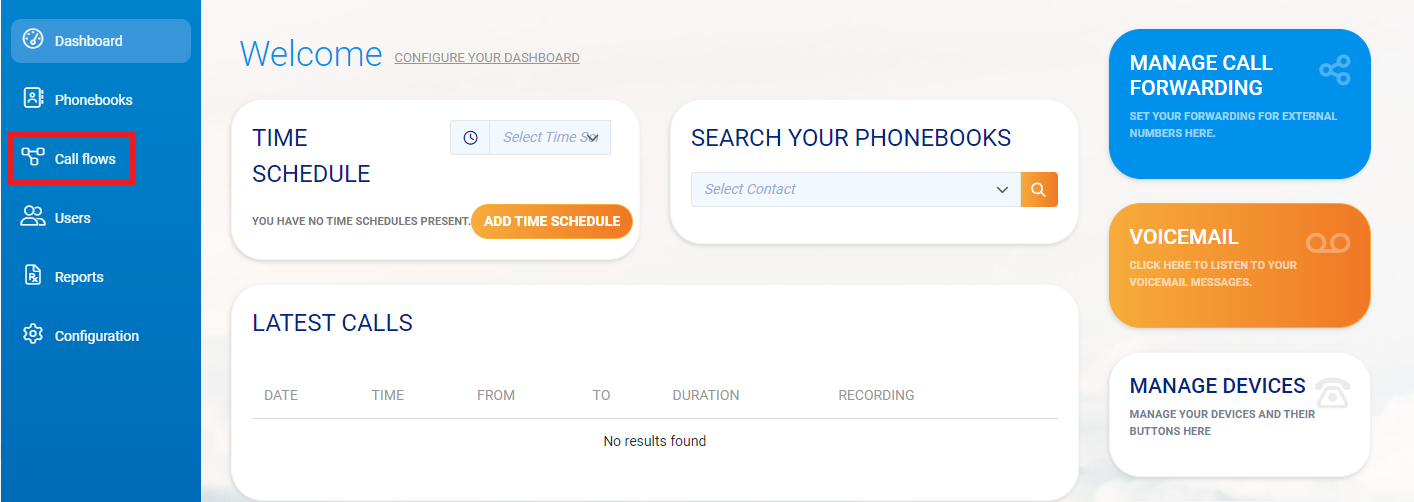
Step 2: Choose the calling process you wish to modify by clicking on the Pencil icon.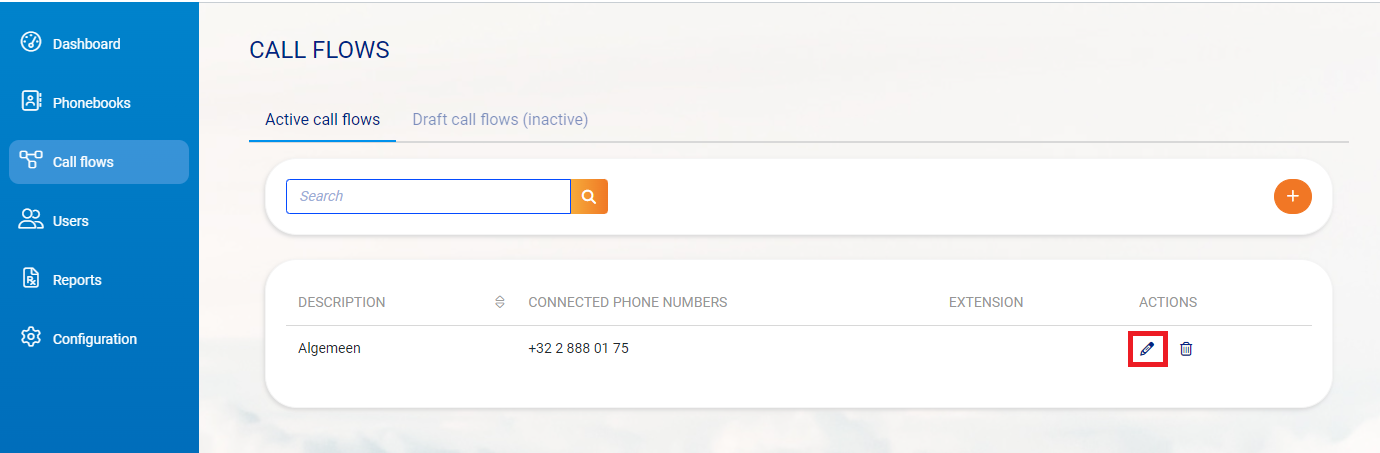
Step 3: In the left side menu under Actions, choose Voicemail, you need to click on the cube and hold your mouse button to drag the cube into the calling process.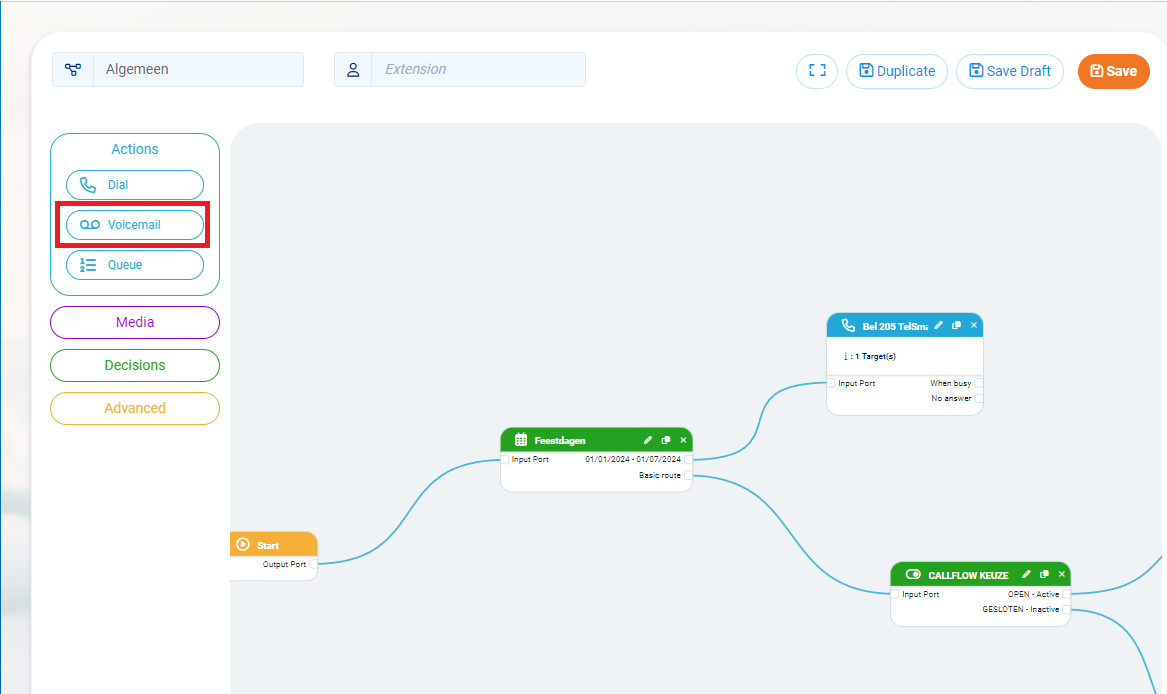 Step 4: Move the cube to where you want to apply voicemail. Move is done by clicking the cube, holding your mouse button and thus dragging the cube.
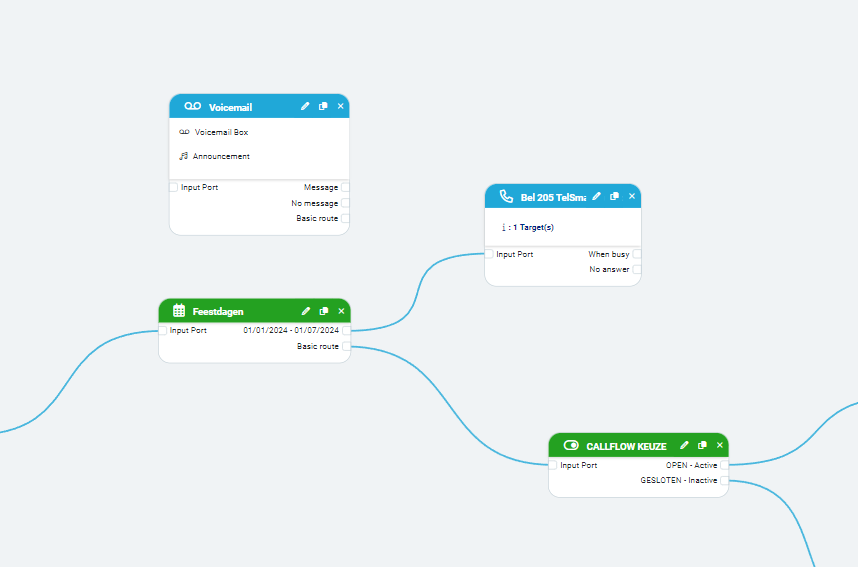
Step 5: Connect the correct lines to the voicemail block, here we choose when the user does not answer or is busy.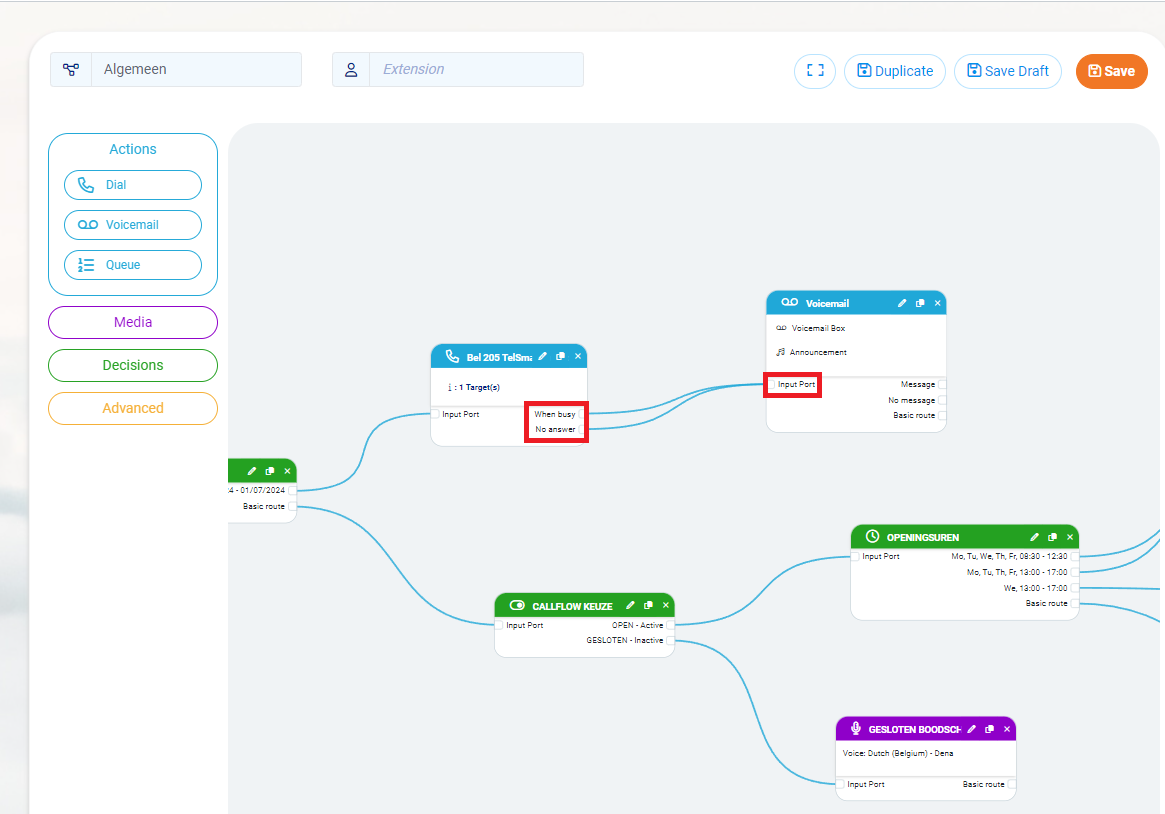
Step 6: Click on the pencil to adjust the voicemail block.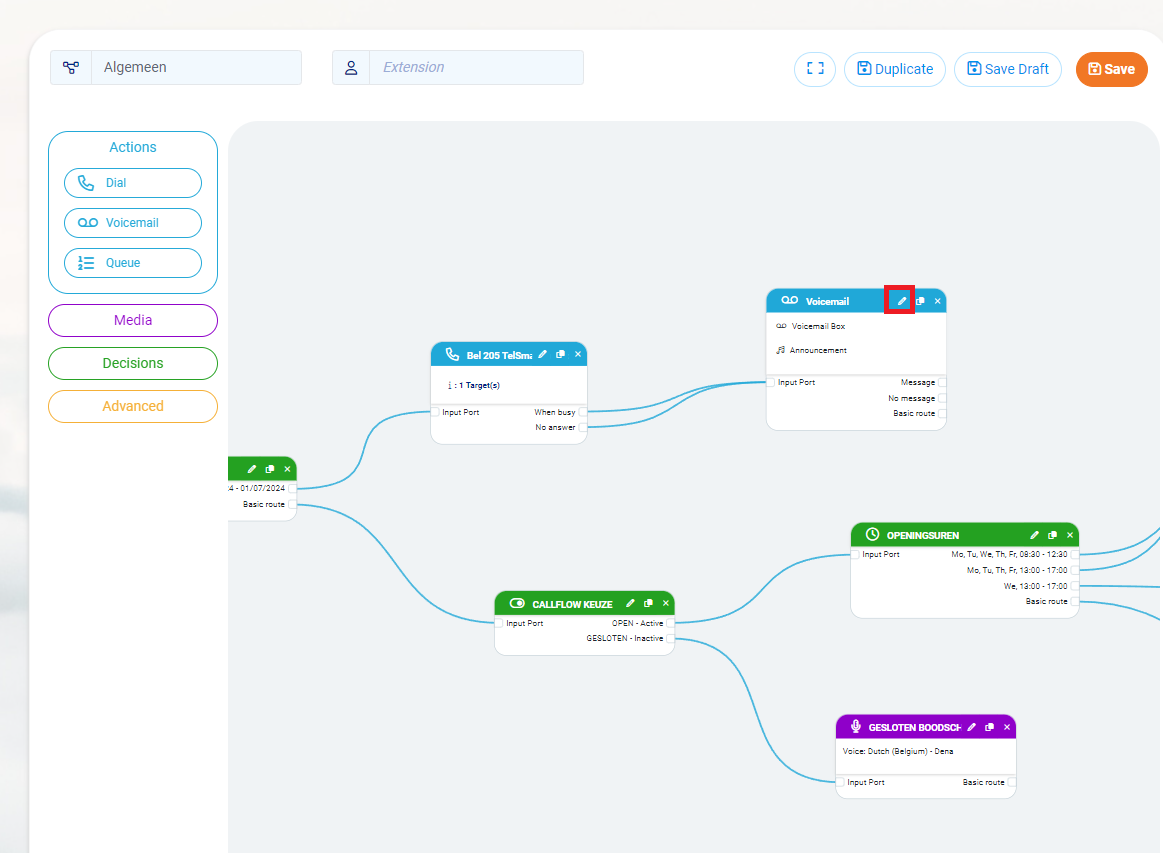
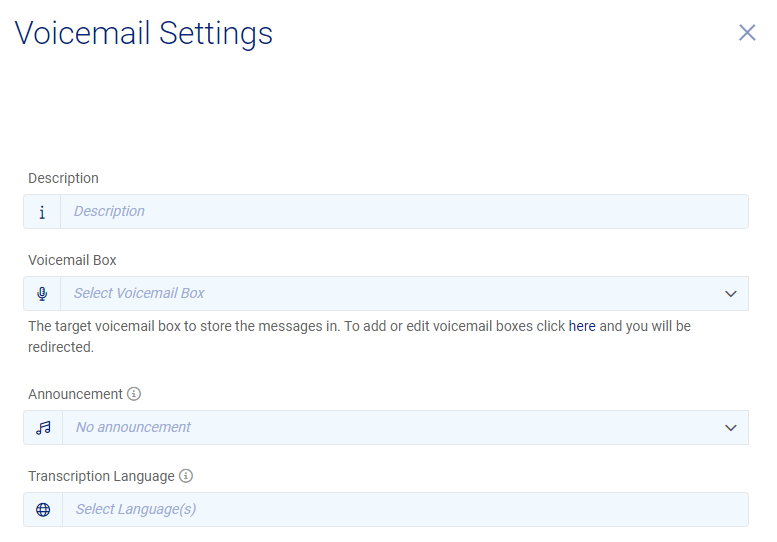
Step 7: Fill in the fields below. Give the block a description. Click in the Select Voicemail Box field, to choose an available voicemail. In Announcement, you can still choose that people first hear a specific message from the media library before hearing the beep to speak in.
Step 8: Here we chose the description Support Mailbox, + also chose the Support mailbox we created in this manual. Also added a message informing the customers that they can leave a message.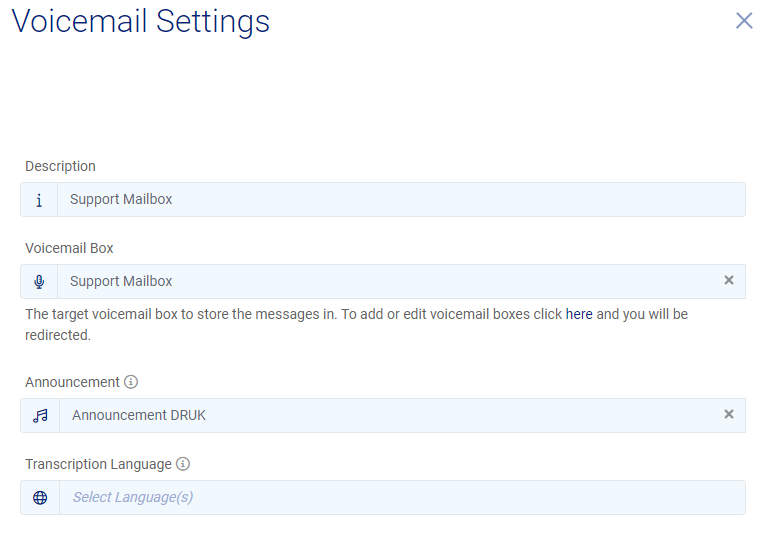
Save the settings with Ok.
Step 9: Save the settings by clicking Save at the top right.
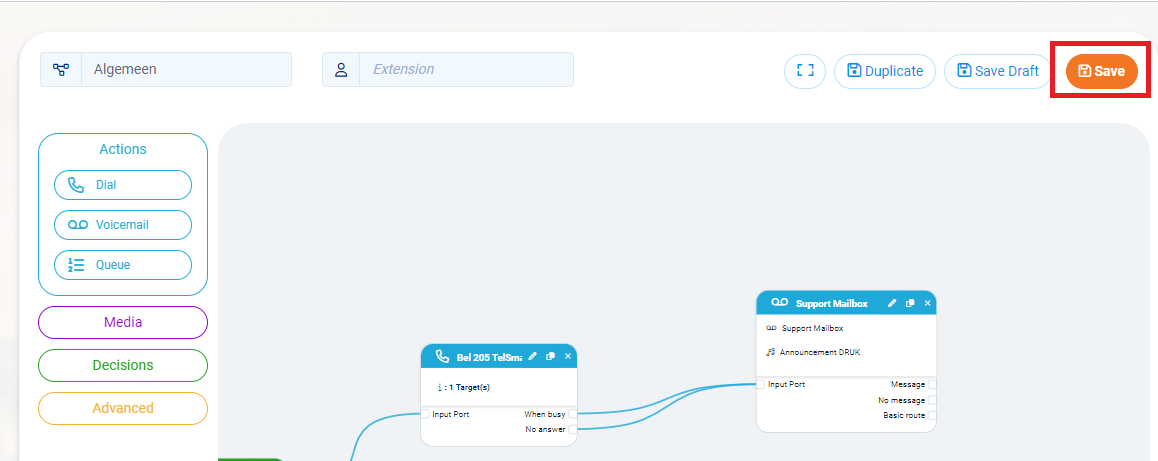
Step 10: You will be asked if you are sure to go ahead and save the changes.
Change voicemail block in Callflow
Follow the steps listed above in Add Voicemail calling process, Step 1, Step 2 and then Step 6 to apply changes.