How to Change Buttons on a Desk Phone or Hot Desk Profile
How to Change Buttons on a Desk Phone or Hot Desk Profile
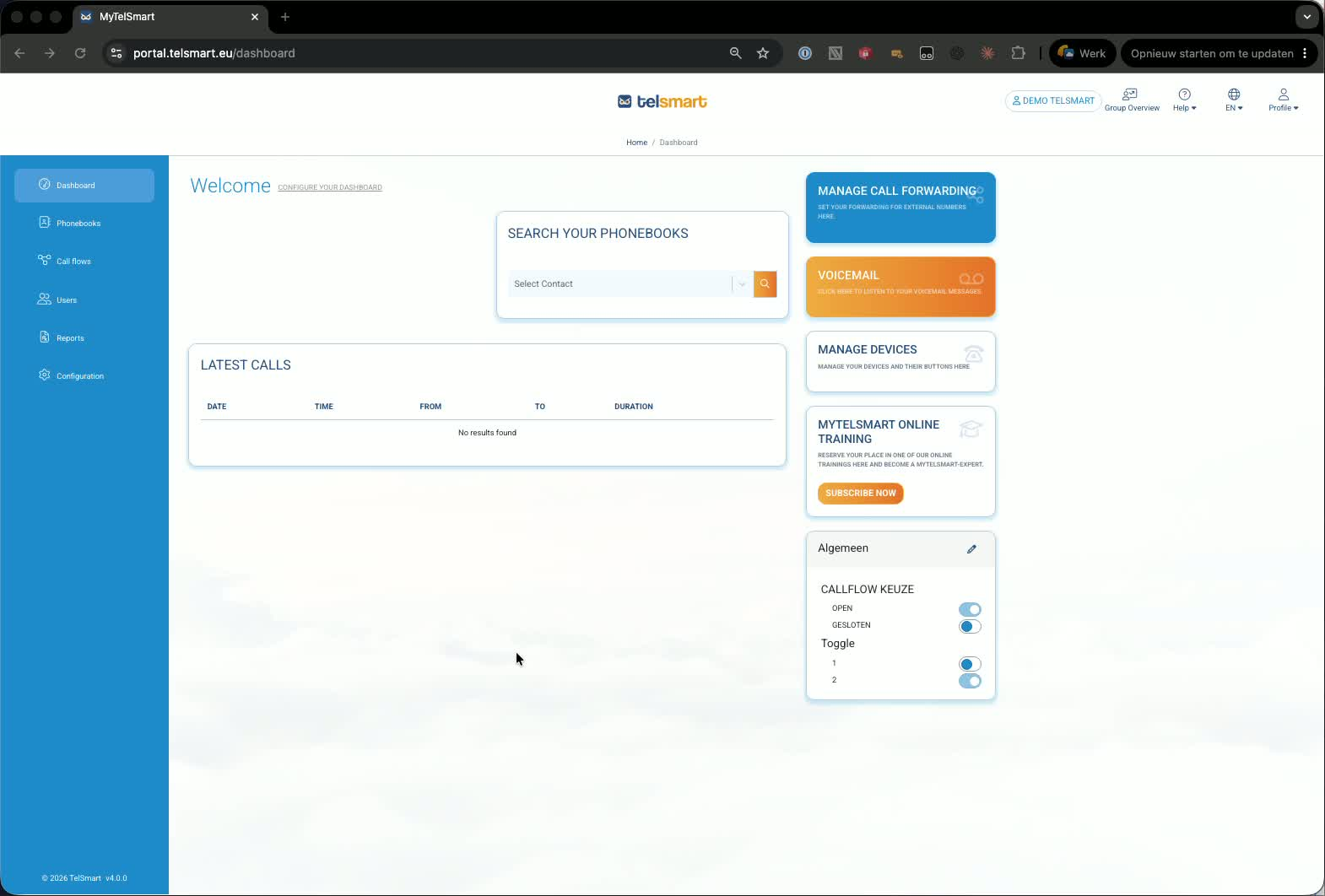
1. Open the device management area 0:20
-
From the dashboard, go to Manage devices.
-
Open Manage Devices or Use Configuration Devices — both links lead to the same place.
-
This is where you can manage button layouts for fixed desk phones and hot desk profiles.
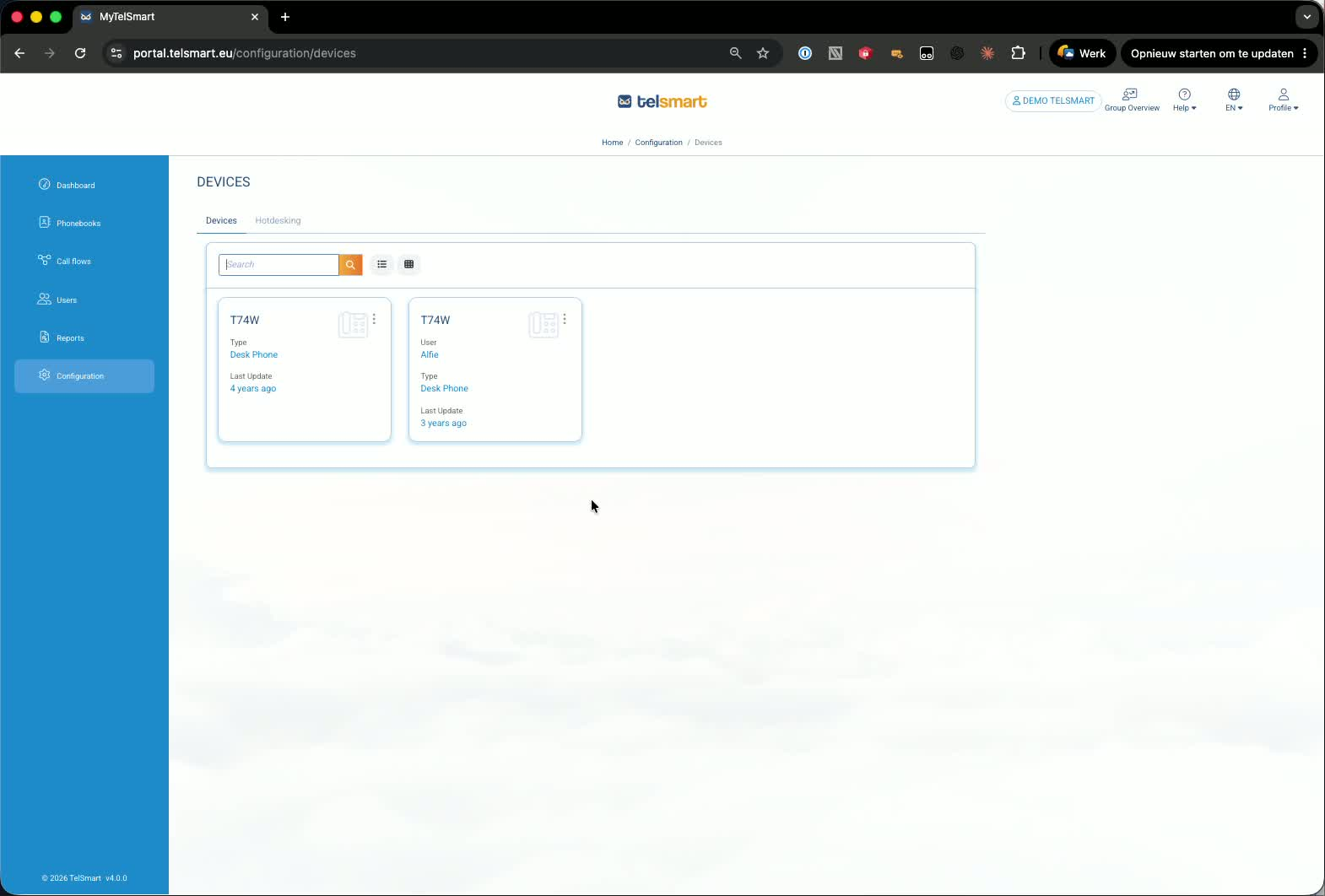
2. Select the fixed desk phone you want to edit 0:35
-
In the device list, find the phone assigned to the user.
-
In the demo, the fixed device belongs to Alfie.
-
This process applies to a fixed phone for a user or a fixed phone tied to a hot desk profile.
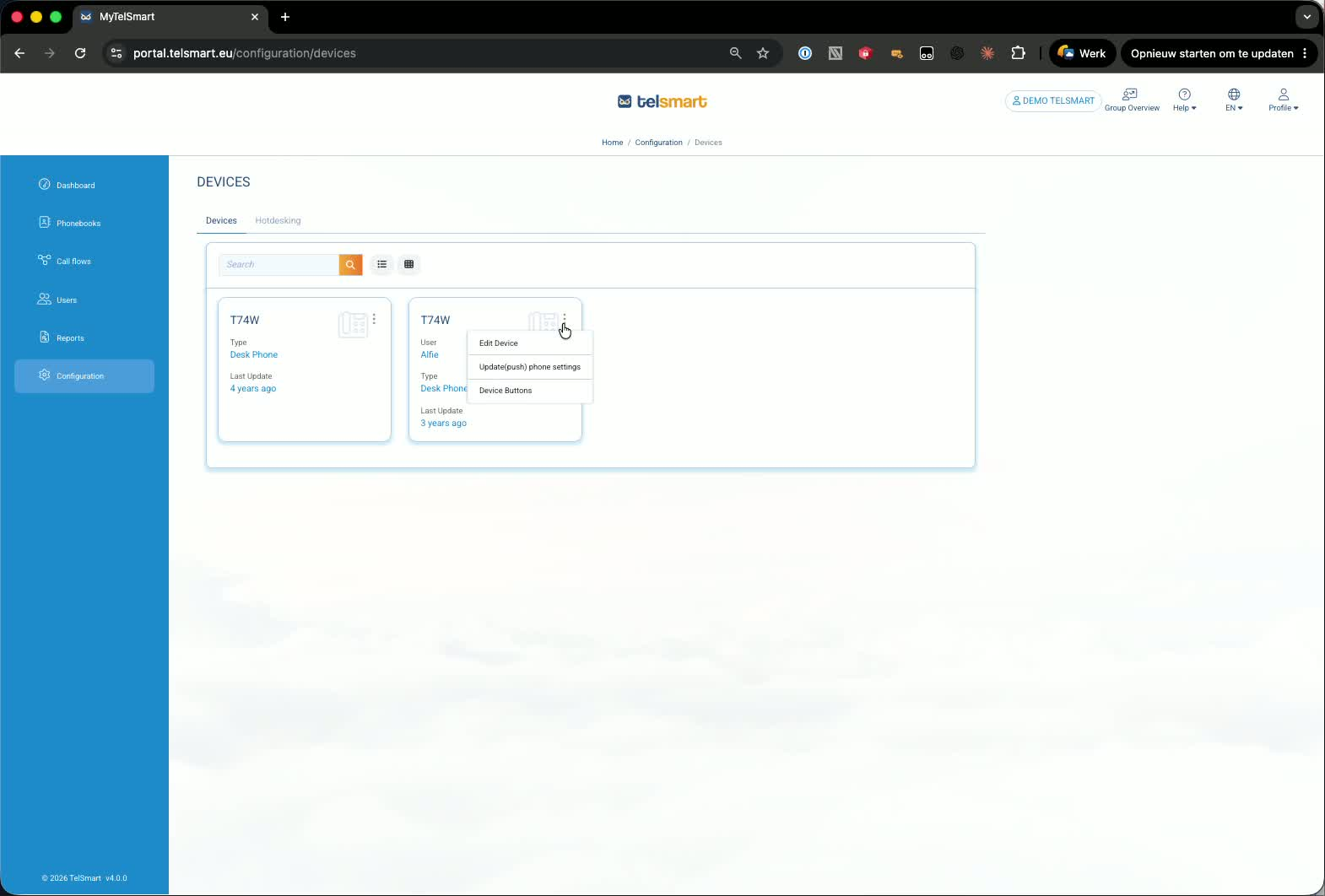
3. Open the device button settings 0:48
-
Click the three dots next to the phone icon.
-
Choose Device buttons.
-
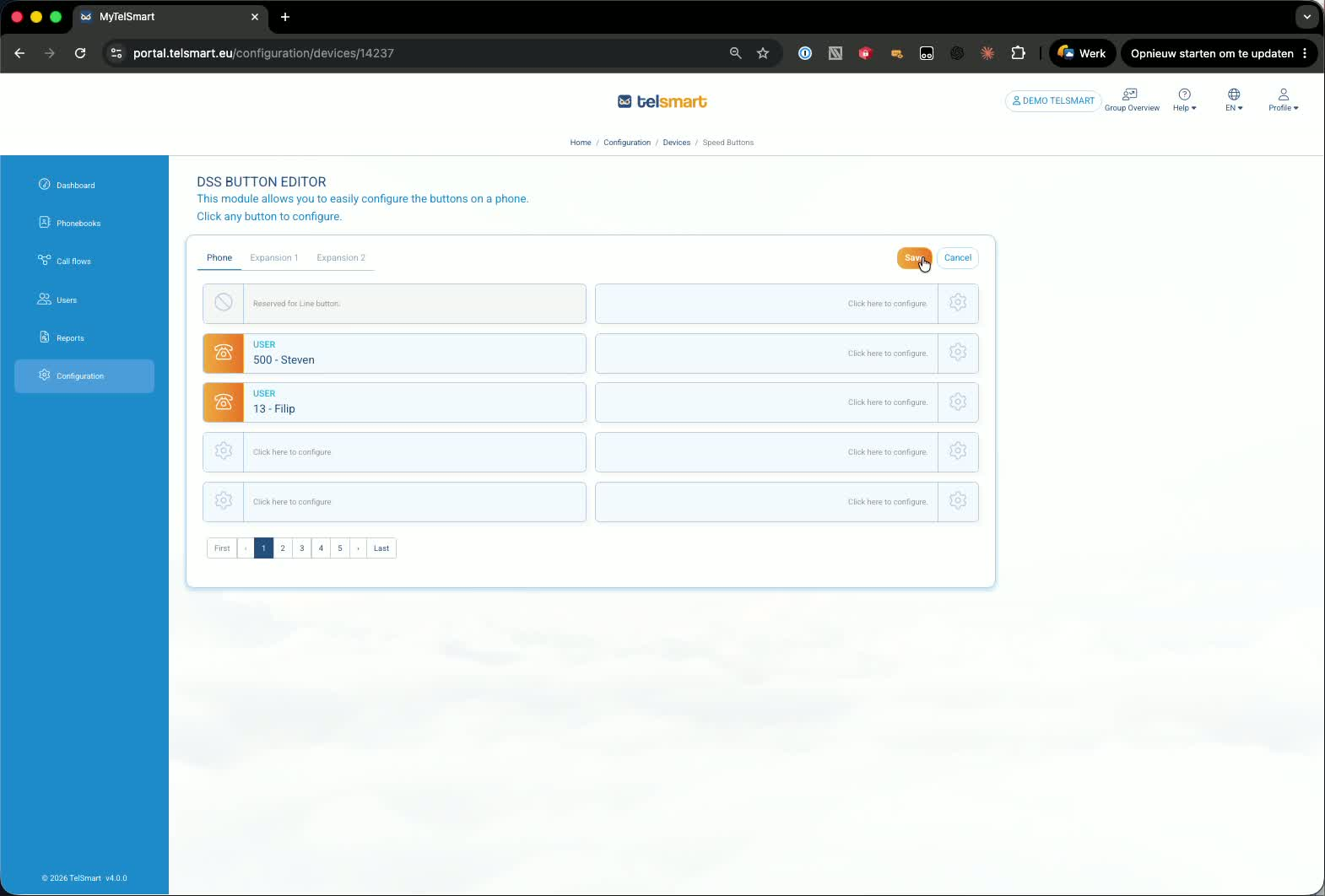
You’ll see the current button layout, including any existing colleague/user buttons.
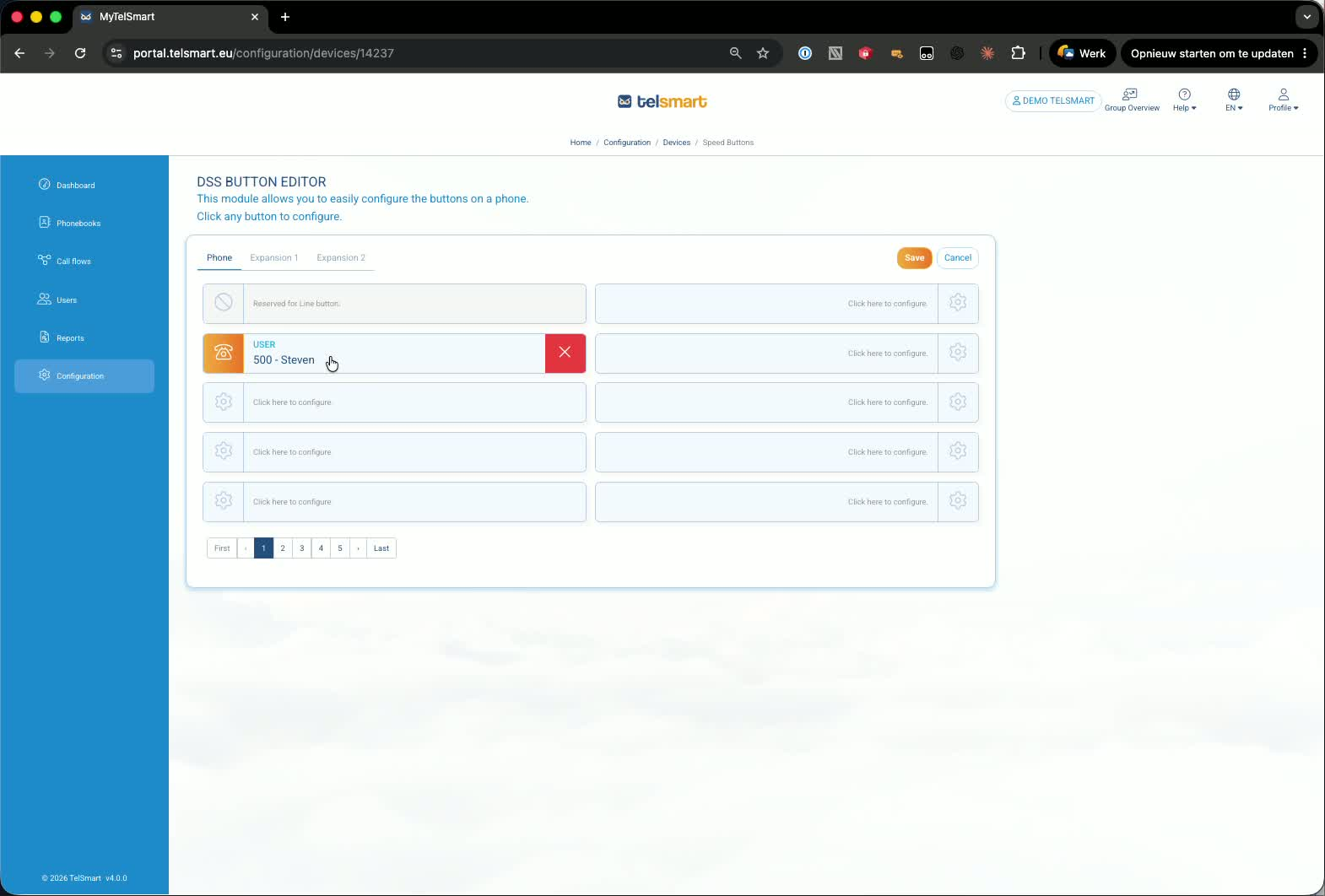
4. Edit the button layout for the fixed device 0:59
-
Move buttons to a different position if needed.
-
Add an extra button by selecting the desired colleague/user.
-
Click OK and then Save.
-
The updated layout should appear on the phone within a few seconds.
5. Switch to the hot desk profile 1:12
-
On the same page, open the Hot desk tab.
-
This shows the users who can log on or off on devices.
-
Hot desk profiles are managed in the same general area as fixed devices.
6. Edit the hot desk device buttons 1:31
-
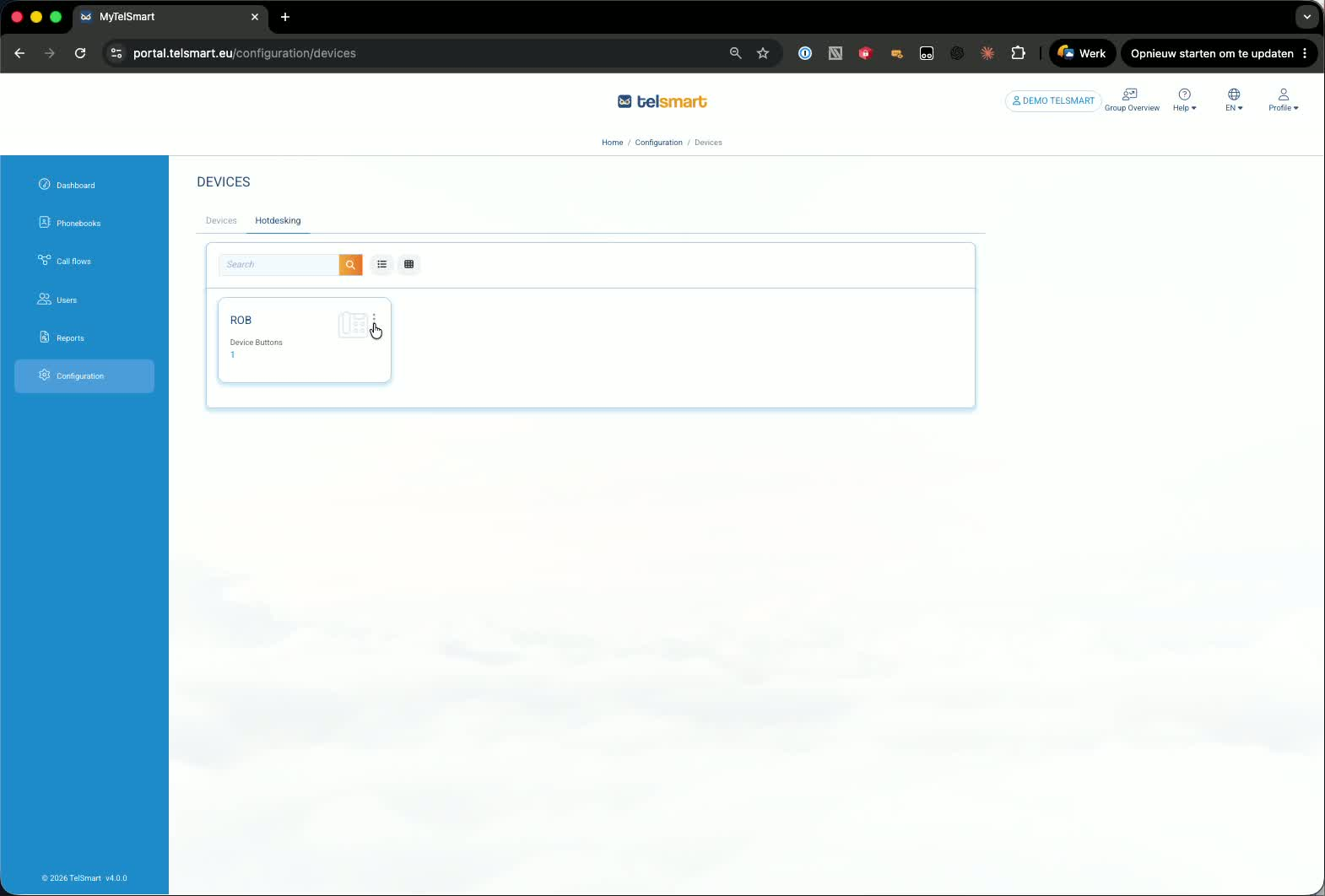
Click the three dots next to the hot desk device.
-
Select Device buttons.
-
Review the current phone layout for that hot desk profile.
-
Add another button if needed, then click OK and Save.
7. Refresh the hot desk phone to see the changes 1:49
-
The changes are saved to the hot desk profile.
-
To make the new buttons appear on the hot desk phone, log off and log back on.
-
After re-login, the updated button layout will be visible.