How to Change a User’s Caller ID
How to Change a User’s Caller ID in the Dashboard
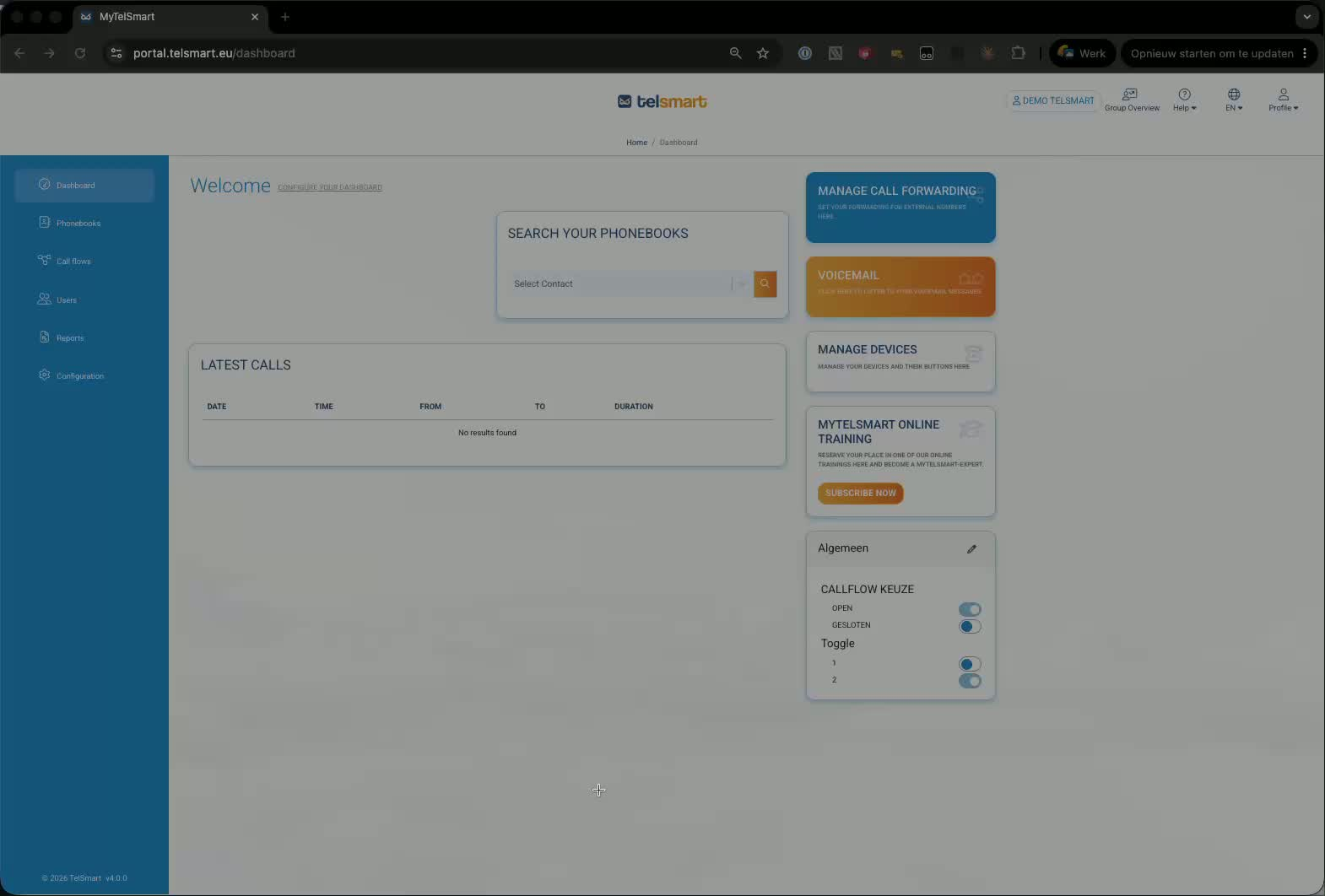
1. Open the Users page in your dashboard 0:00
-
Go to your dashboard.
-
In the left-hand menu, click Users.
-
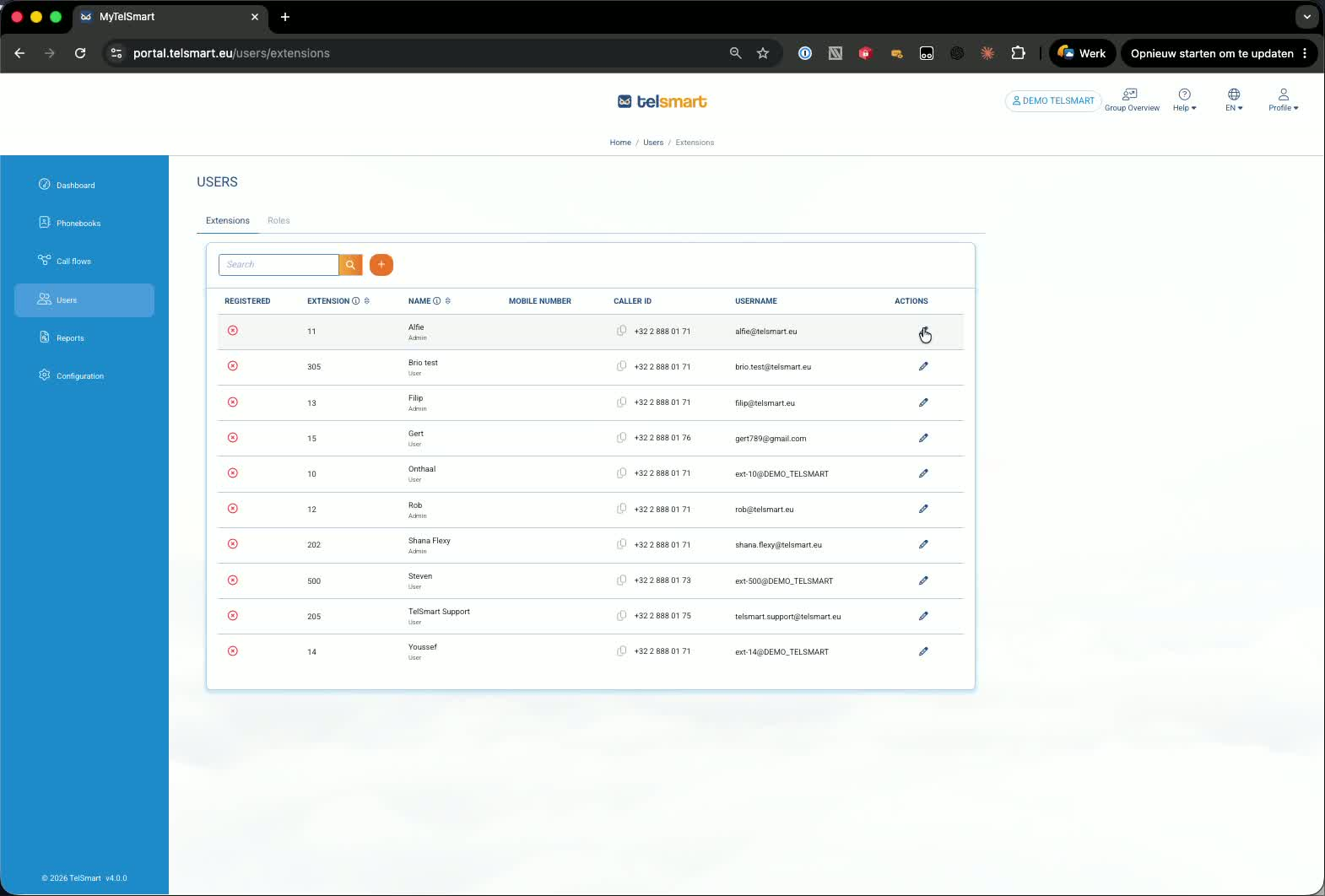
You’ll see a list of all users, including their current Caller ID in the table.
2. Select the user you want to edit 0:22
-
Find the user whose Caller ID you want to change.
-
Click the pencil/edit icon for that user.
-
This opens the user’s settings, including the Caller ID field.
3. Change and save the Caller ID 0:30
-
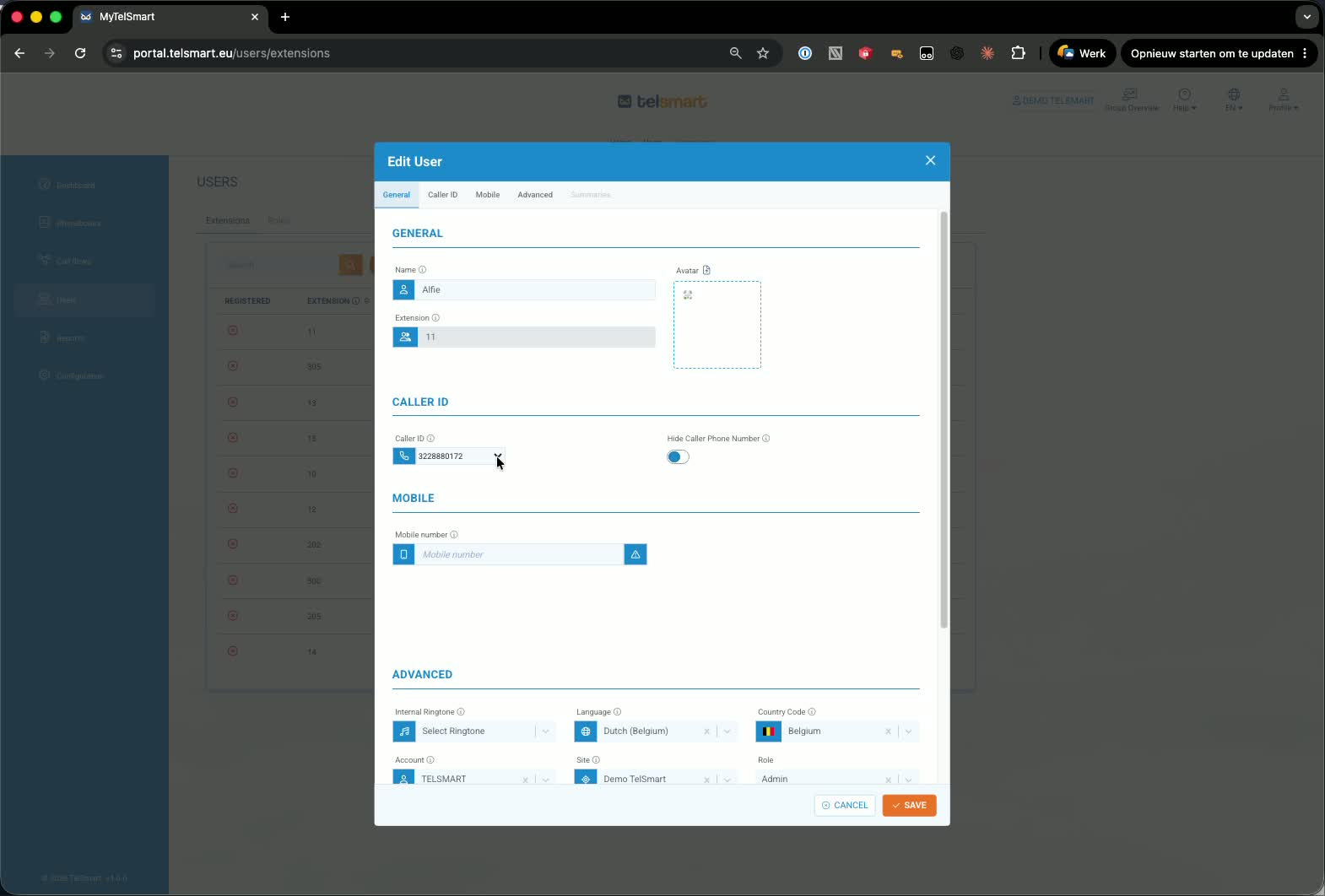
In the Caller ID field, open the dropdown menu.
-
Choose the new phone number you want to use.
-
Click Save to apply the change.
-
The user will now have the updated Caller ID.