Where can I find my calls and call history?
Calls shows every call separately with filters and AI summaries; Conversations groups those same calls per contact, with a full conversation thread.
Calls (Call history) is the full list: every call as a separate row, with filters for direction, period, team member and whether a summary is attached.
Conversations groups your calls per contact, so you see the full history with one person at a glance, with a clear status (Open or Closed) per conversation.
Quickly viewing a summary from Calls
You don't always have to go to the full call details. In the list, click the ⋮ menu next to a call to open a menu with:
- View full summary, a short summary of the call;
- Copy summary link, to quickly share the summary with a colleague;
- Add to contacts, if the number isn't a contact yet.
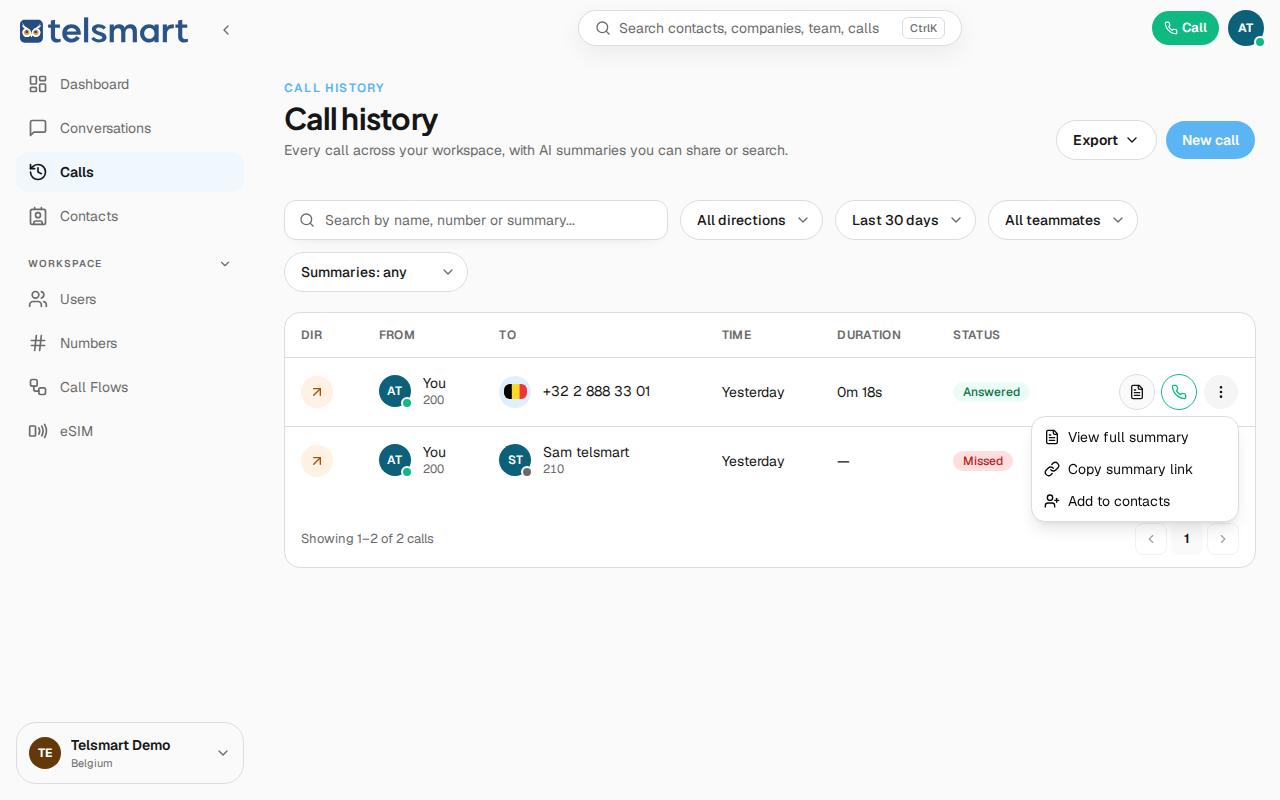
One detail: for a missed call ("No answer · Not picked up") there's nothing to summarize — so those calls show no AI summary, neither in Calls nor in Conversations.
Opening a conversation in Conversations
- Open Conversations in the left-hand menu.
- Click a contact to open the full thread.
- At the top of each conversation you see the status: Open or Closed.
- Using the ⋮ menu next to a conversation you can mark it as unread, add the number to your contacts, copy the number, or open the conversation in the full call history (Calls).
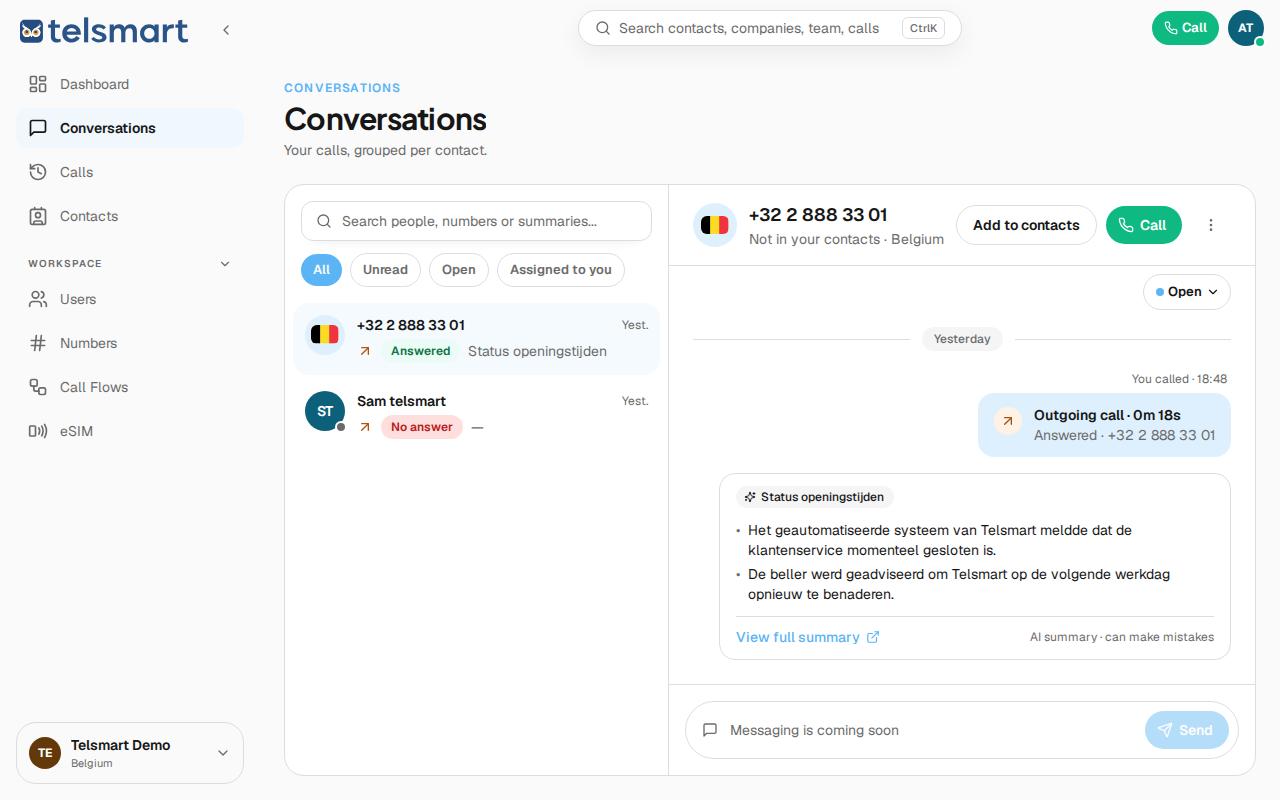
Good to know: the filter in Calls defaults to "Last 30 days". If you're looking for an older call and can't find it, set the period to cover all time first. By the way, the message field at the bottom of a conversation isn't active yet — for now it shows "Messaging is coming soon".